To run the Zezo OTT API, you need your own MongoDB database. We recommend using MongoDB Atlas, which is a fully managed and reliable cloud database.
Follow the steps below to create your MongoDB Atlas account and database.
Watch Video On YouTube
Step 1: Create a MongoDB Atlas Account
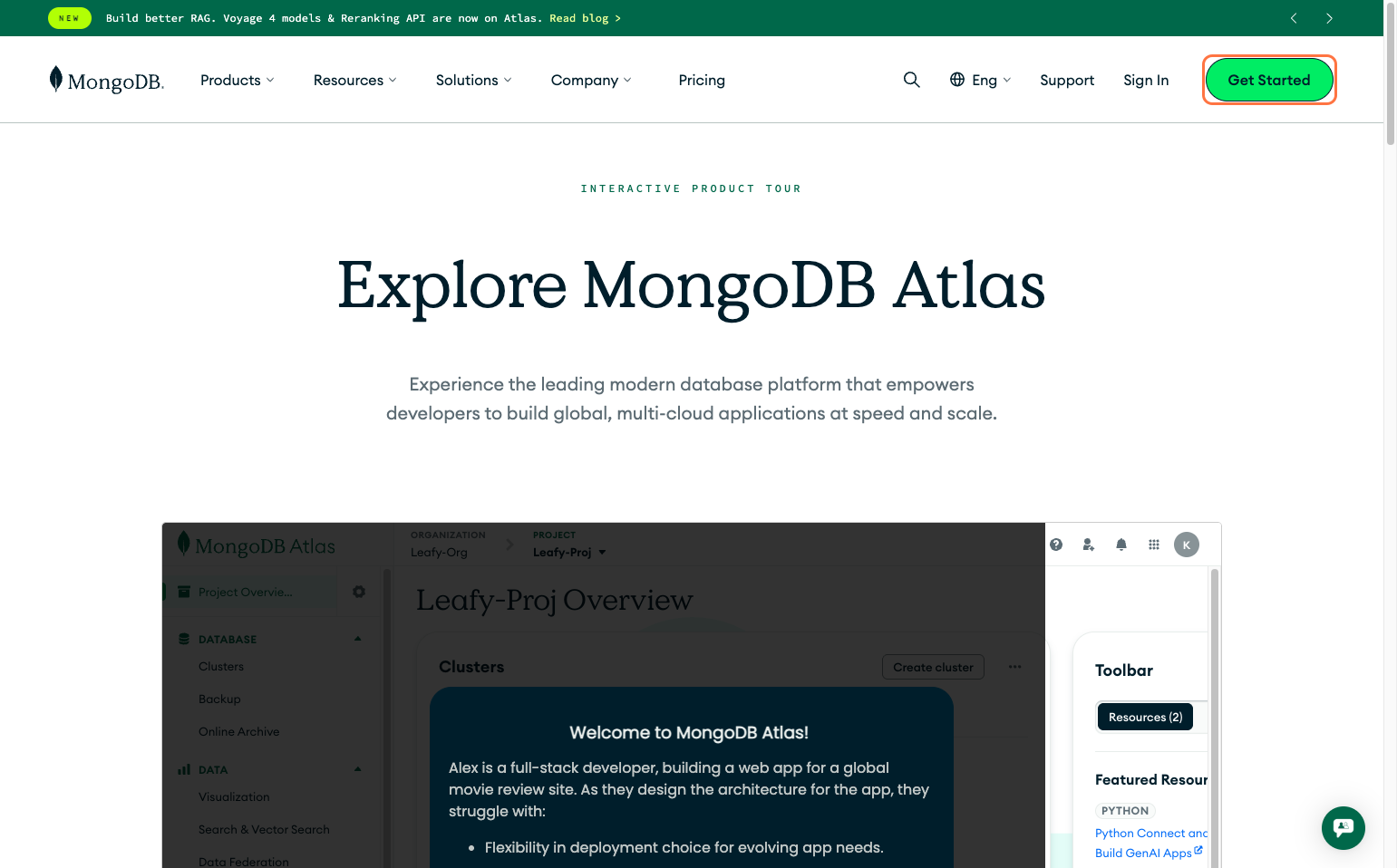
Go to the official MongoDB Atlas website: 👉 https://www.mongodb.com/atlas
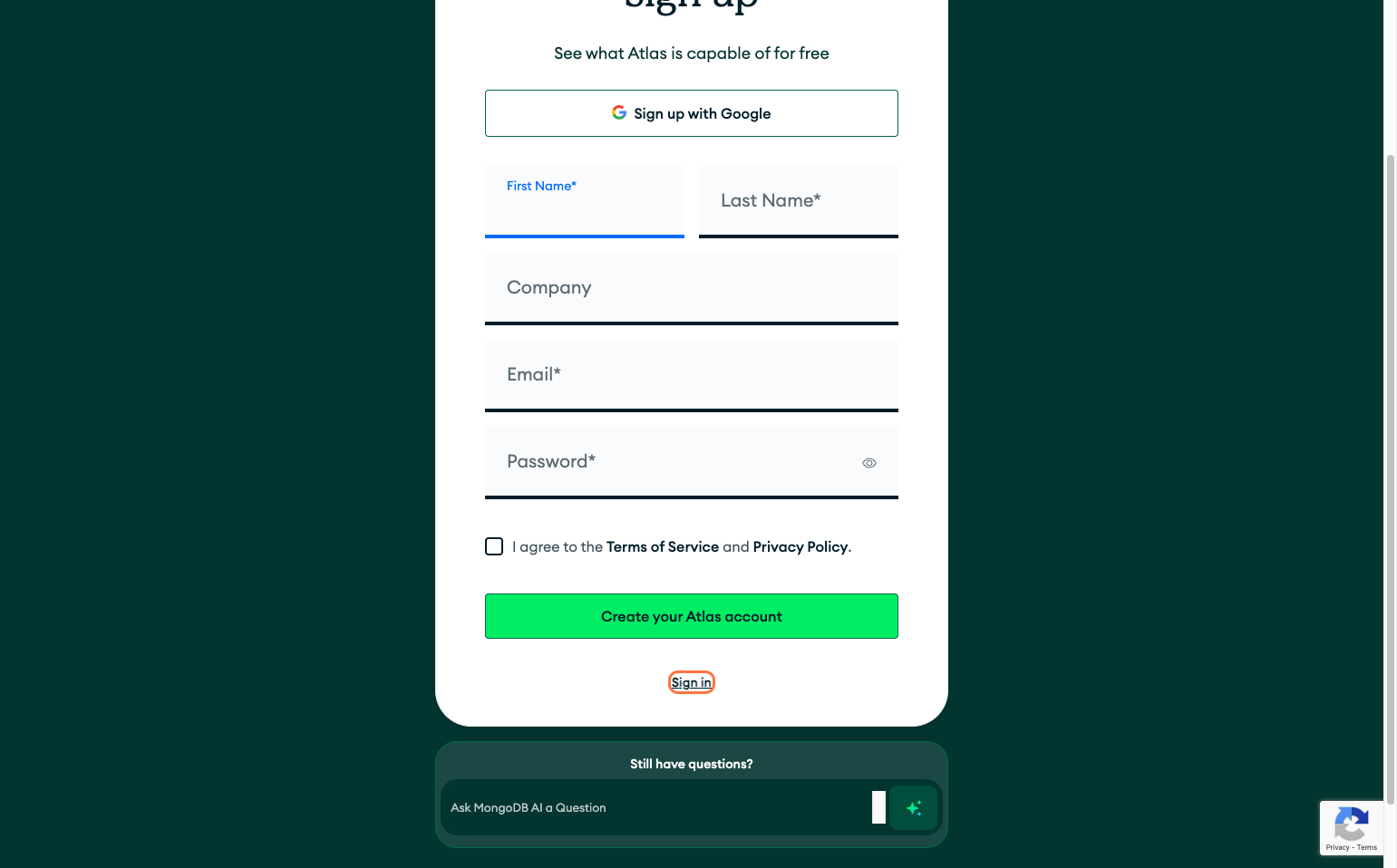
Click on Try Free or Sign Up, then create your account using email, Google, or GitHub.
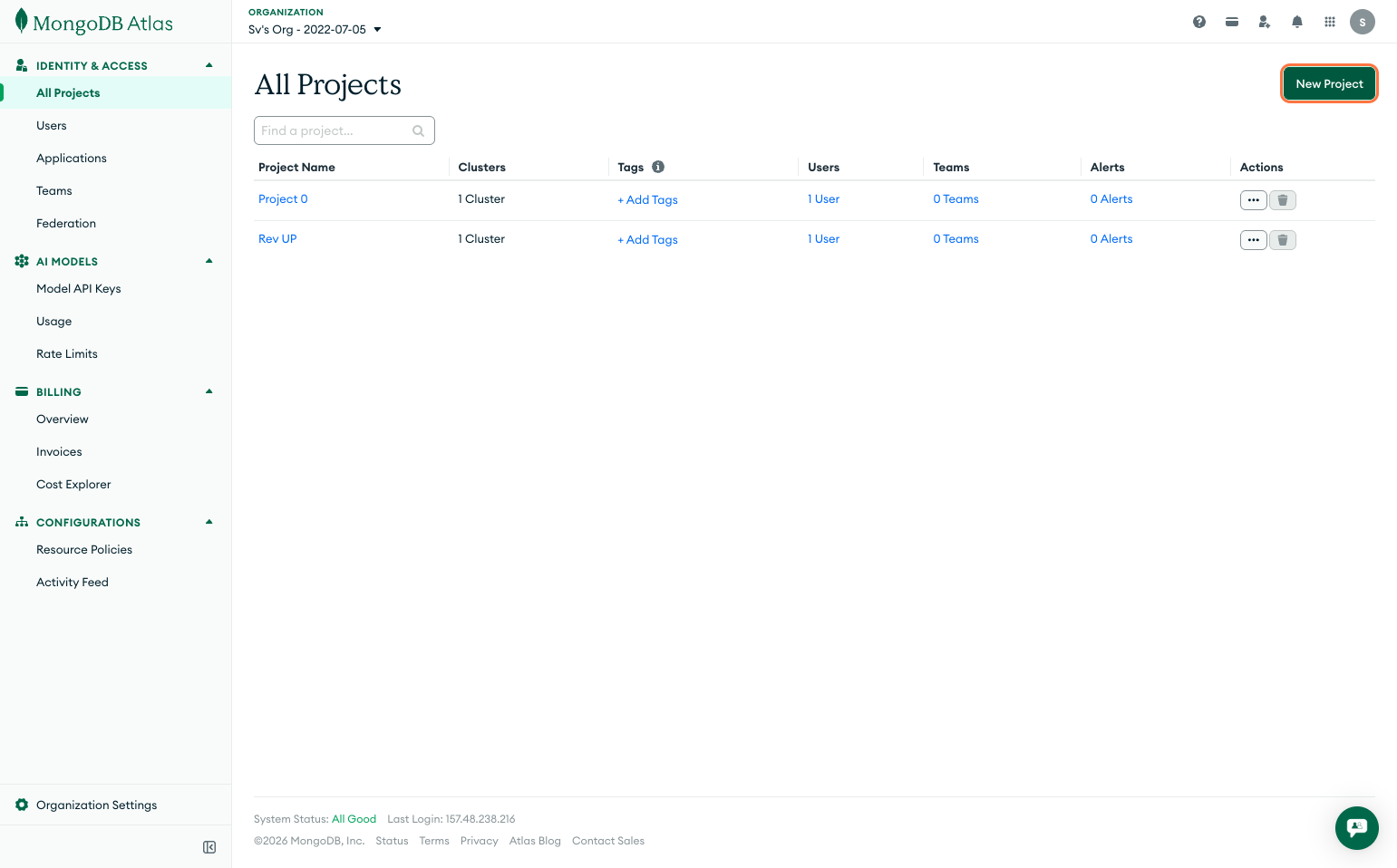
Step 2: Create a New Project
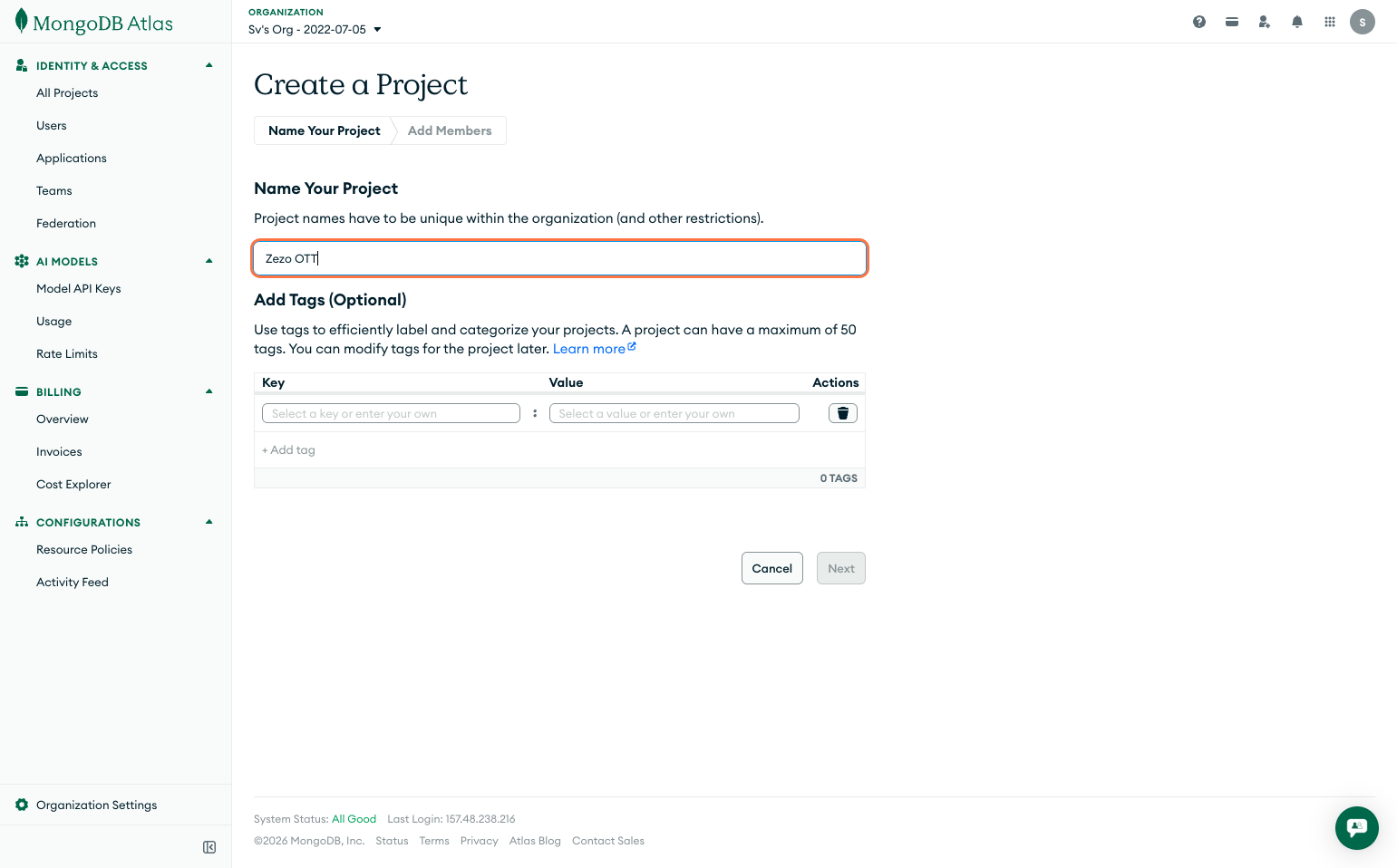
After logging in, MongoDB Atlas will ask you to create a project.
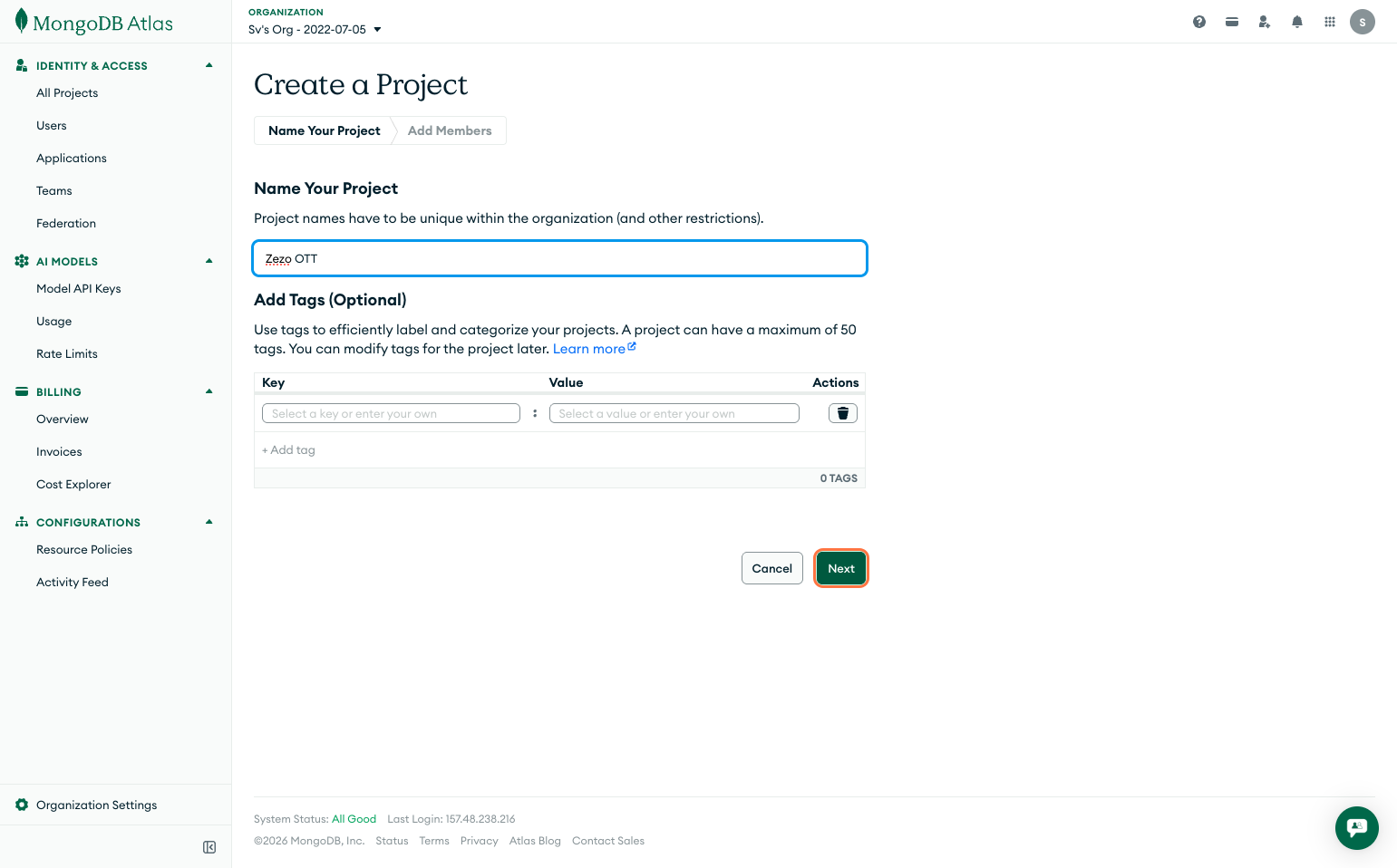
- Enter a project name (for example:
Zezo-OTT) - Click Next and finish the setup
Step 3: Create a Cluster
Now create your database cluster:
- Click on Create Button
- Choose the Free Shared Cluster (Free)
- Select your preferred cloud provider and region
- Click Create Deployment
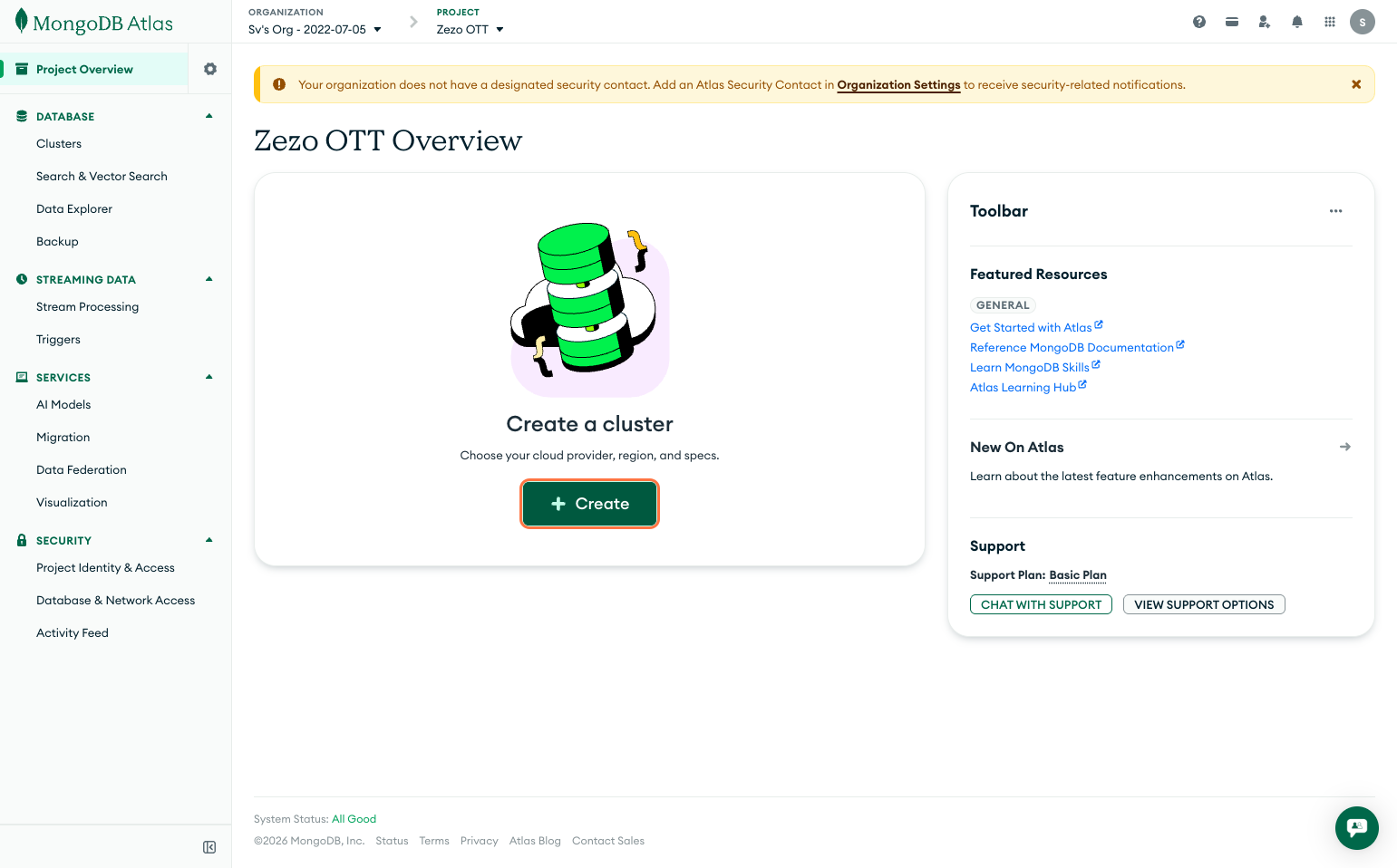
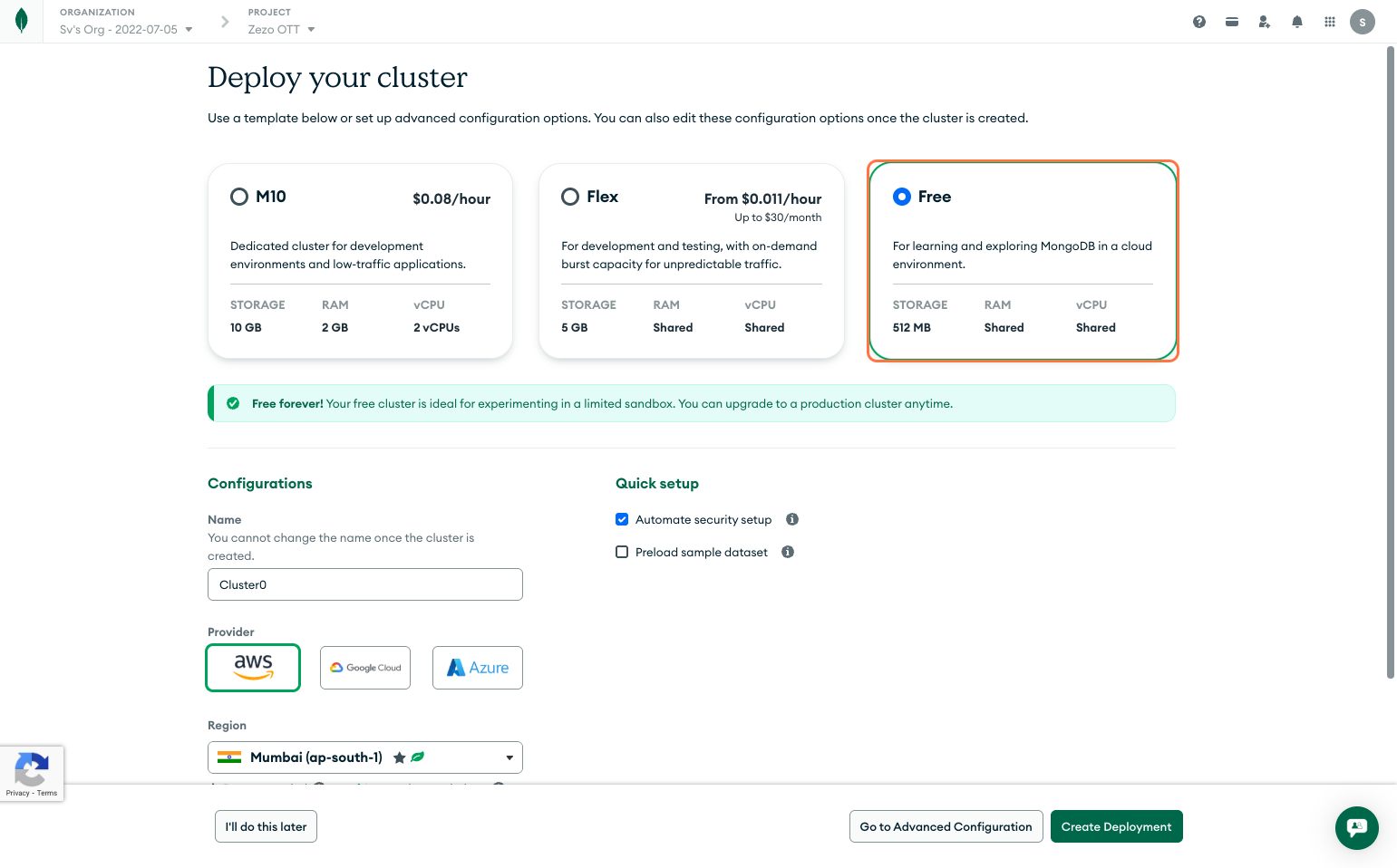
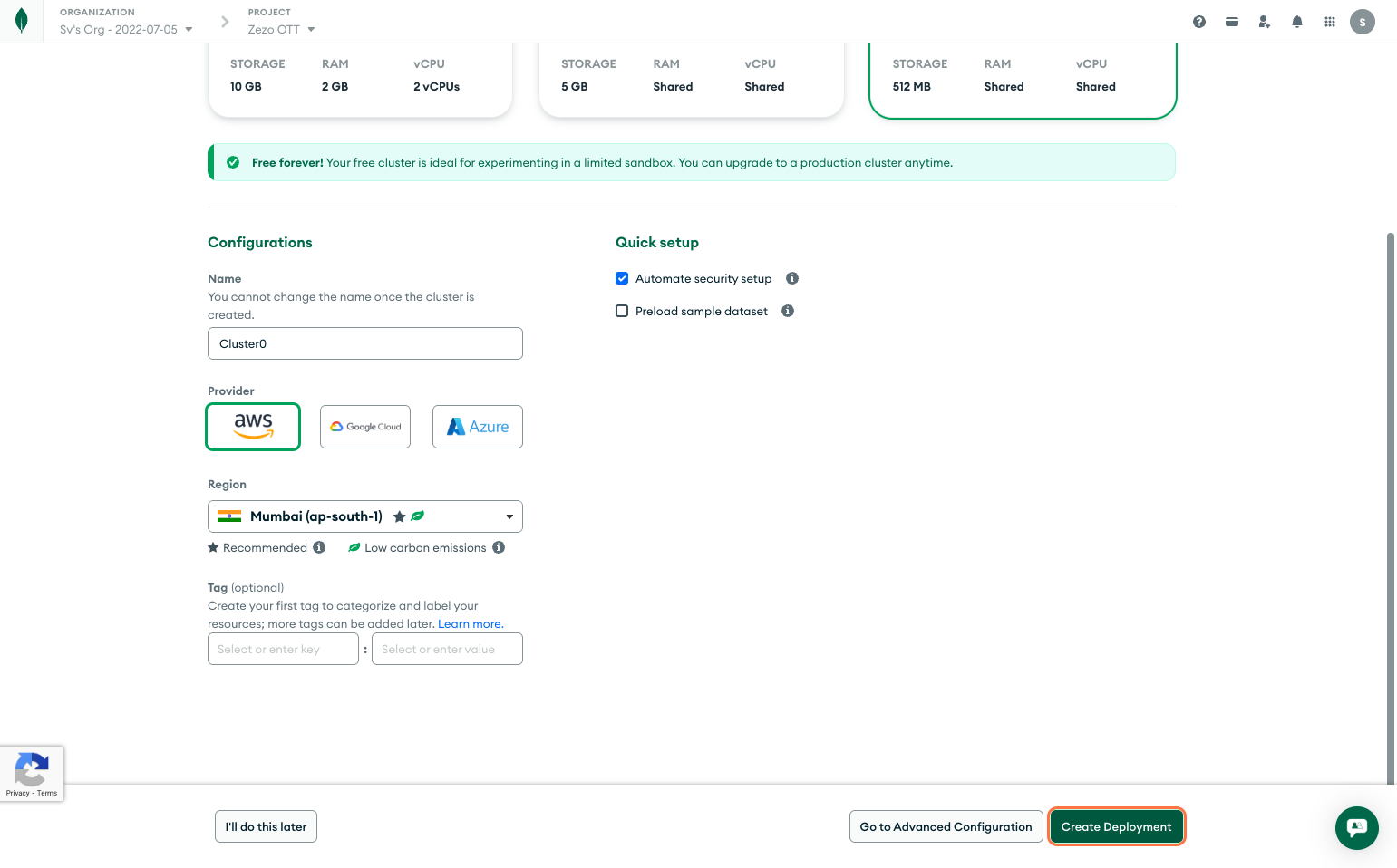
⏳ It may take a few minutes for the cluster to be ready.
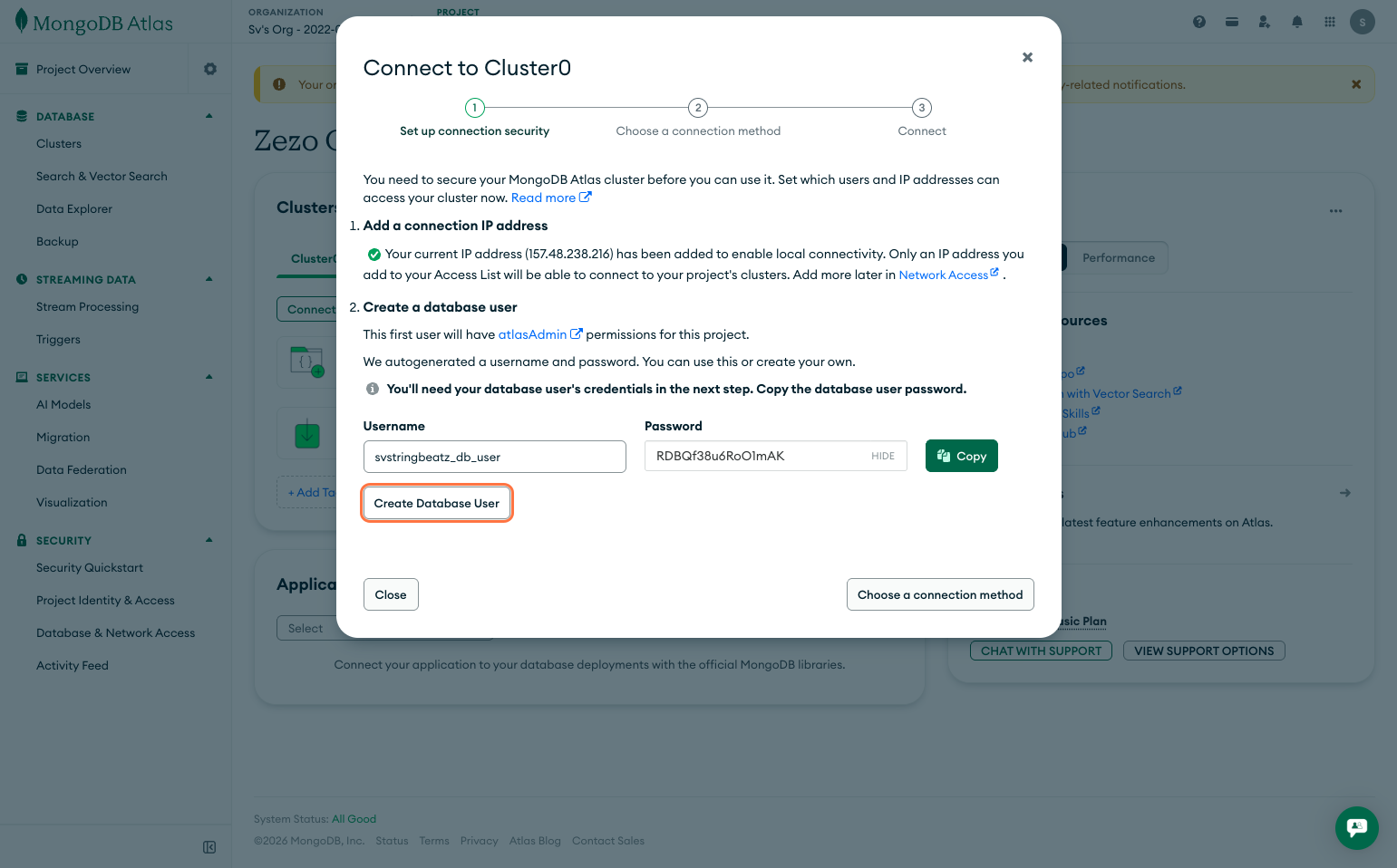
Step 4: Create a Database User
- Click on Create Database User and make sure copy your username or password
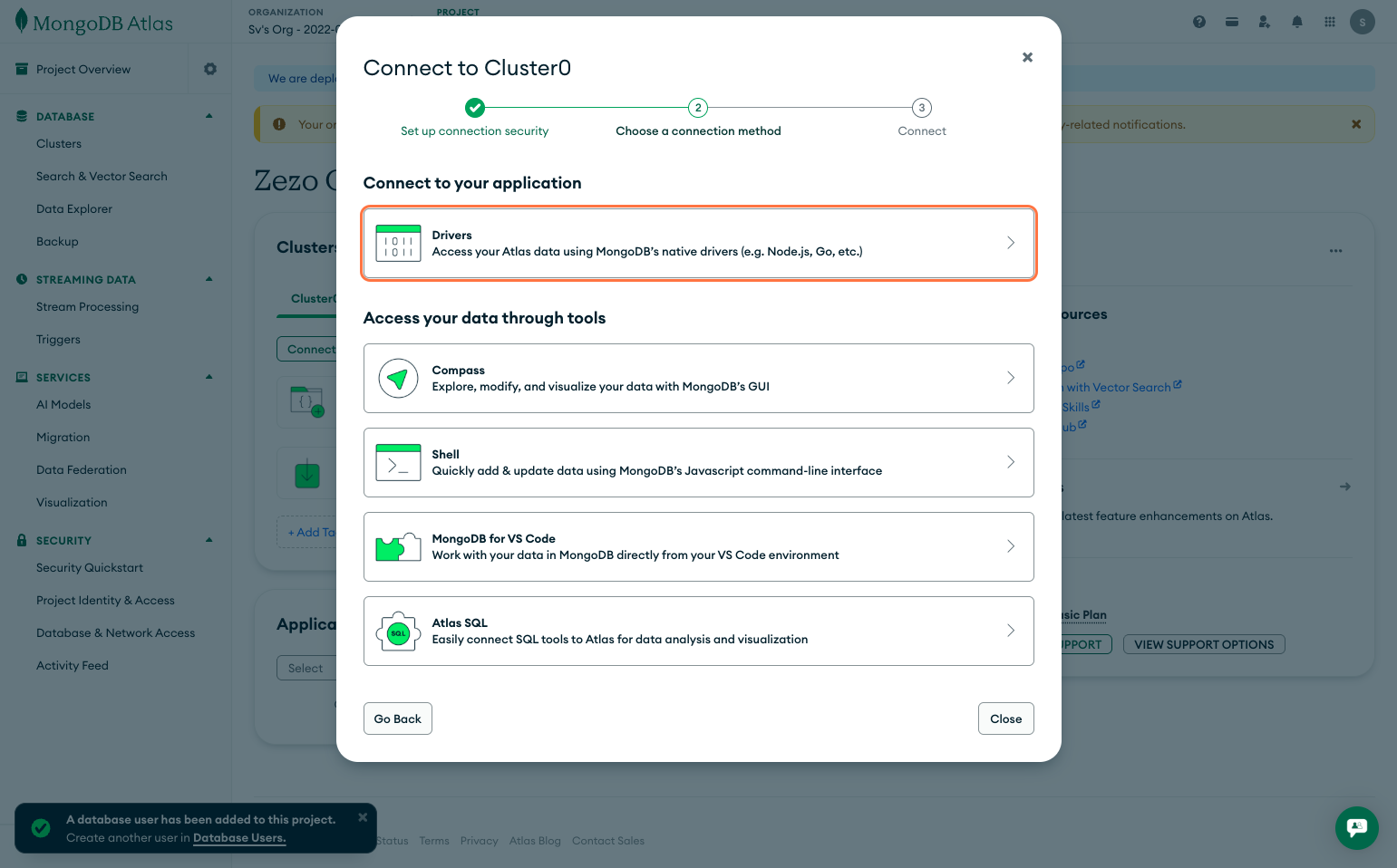
- Click on Choose a connection method
- Click on Drivers…
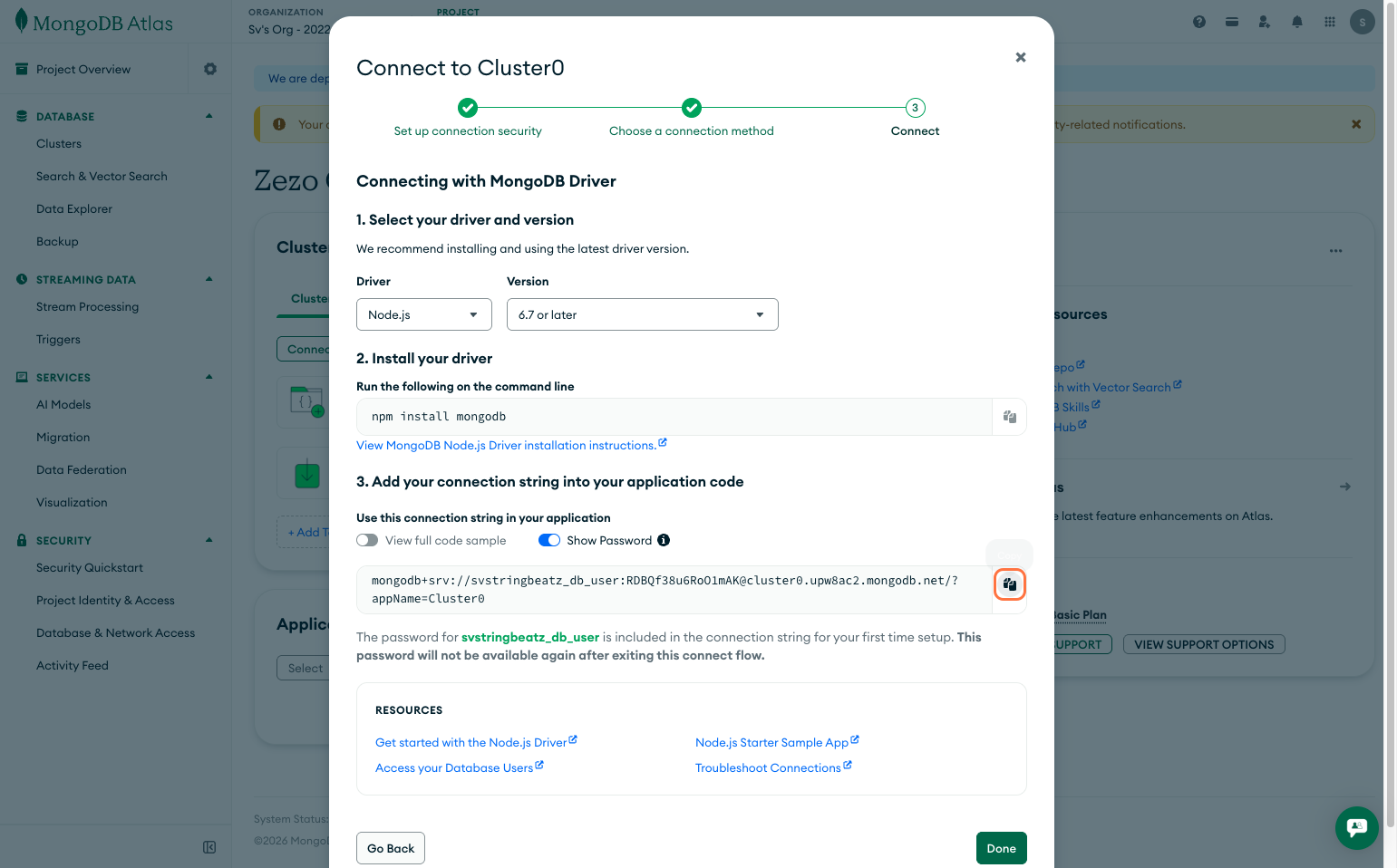
- Click on Copy button to copy your database URL
- Click on Done
Make sure to keep these credentials safe—you’ll need them later.
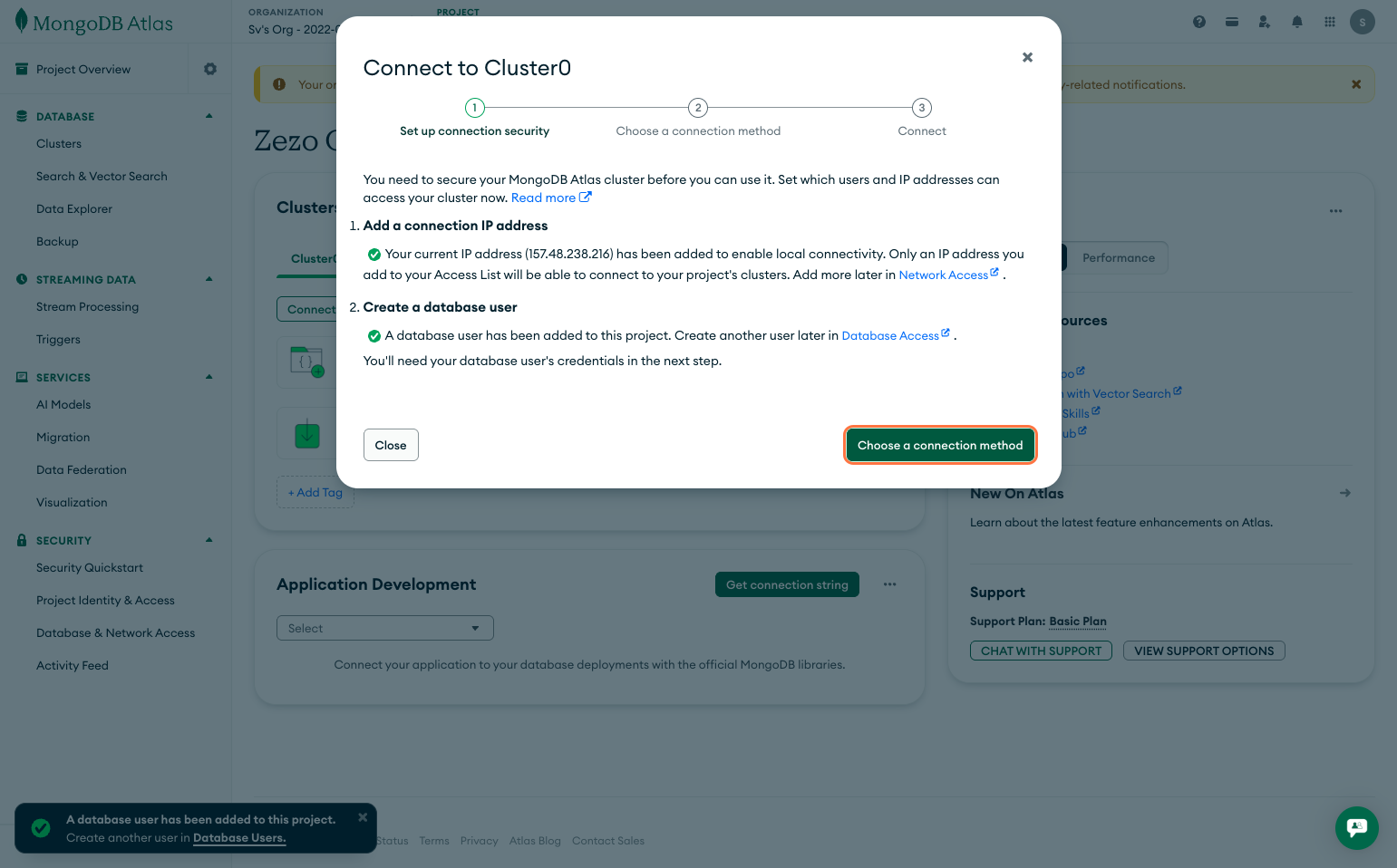
This is your database URL. Make sure to copy it and save it in a safe place—we’ll need it later.
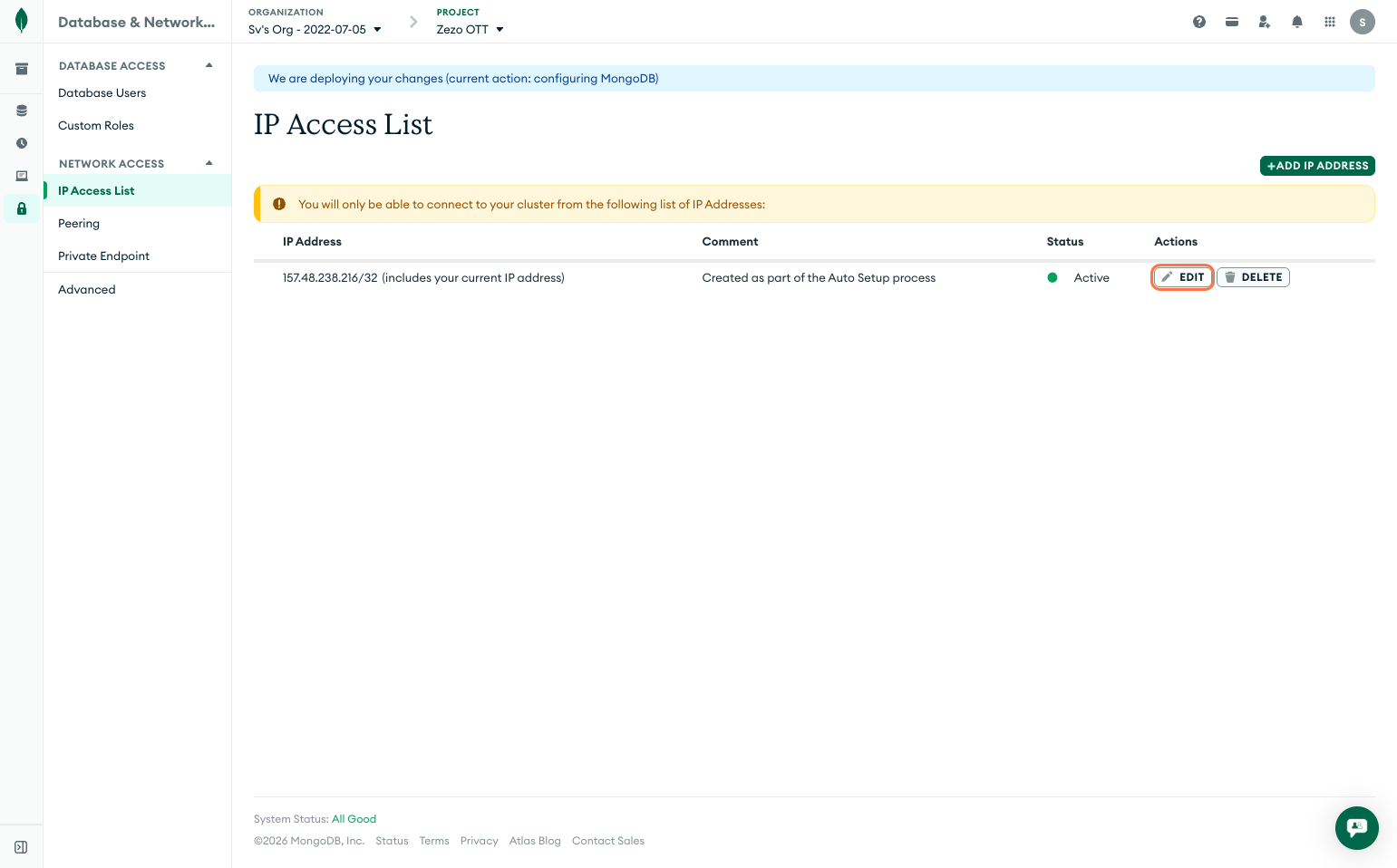
Step 5: Allow Network Access
To allow your Zezo OTT API to connect to MongoDB:
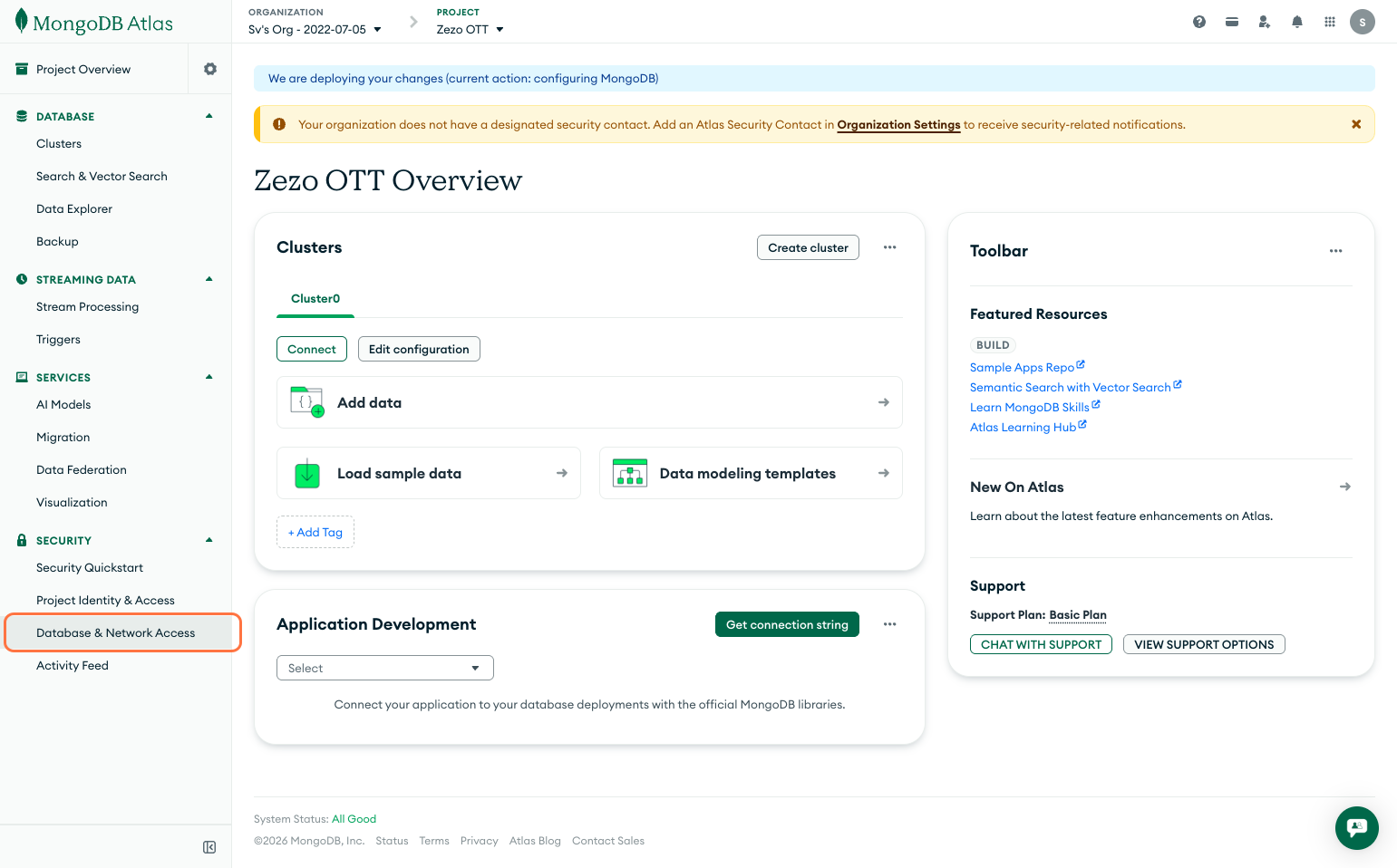
- Click on Database & Network Access
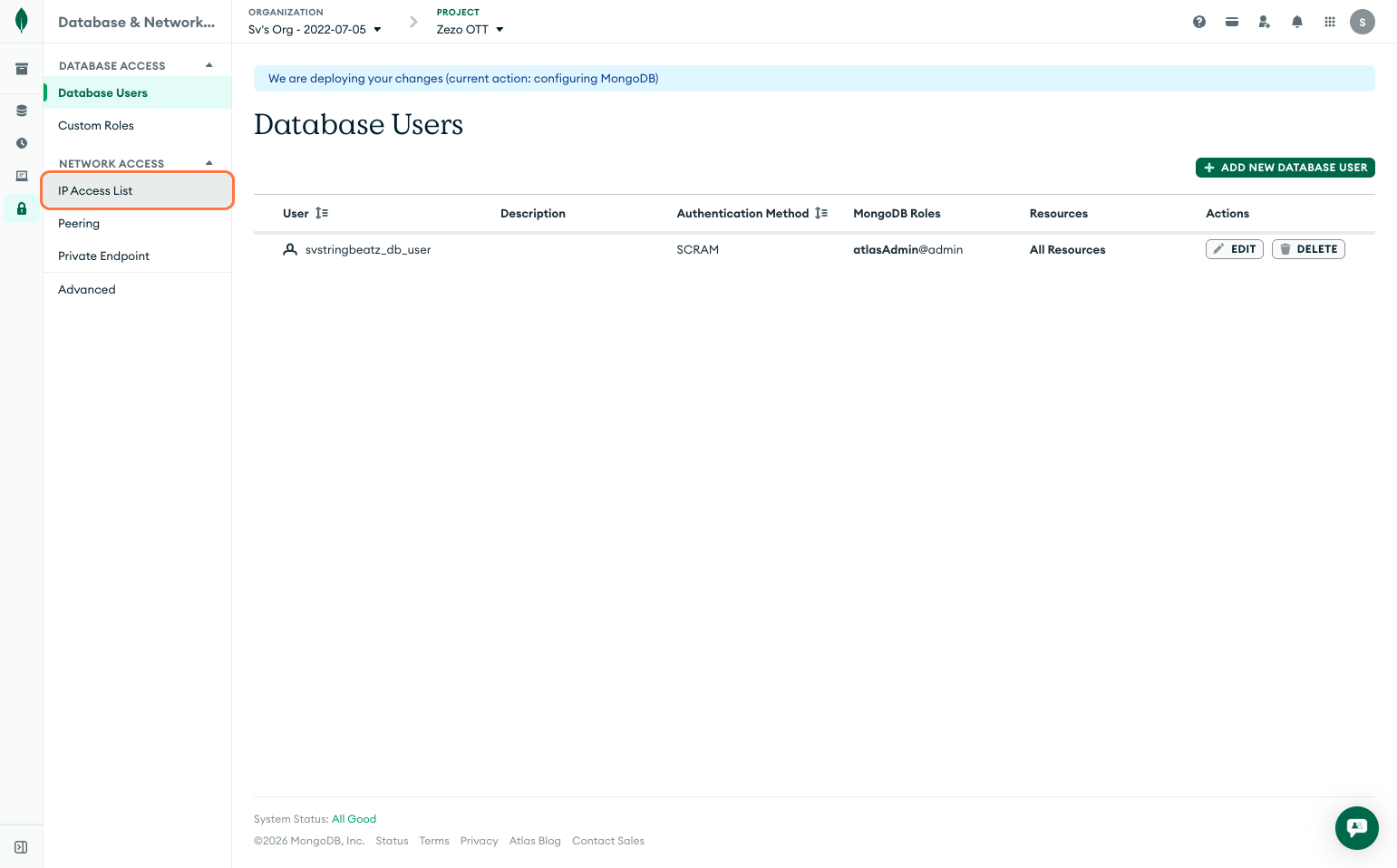
- Click on IP Access List
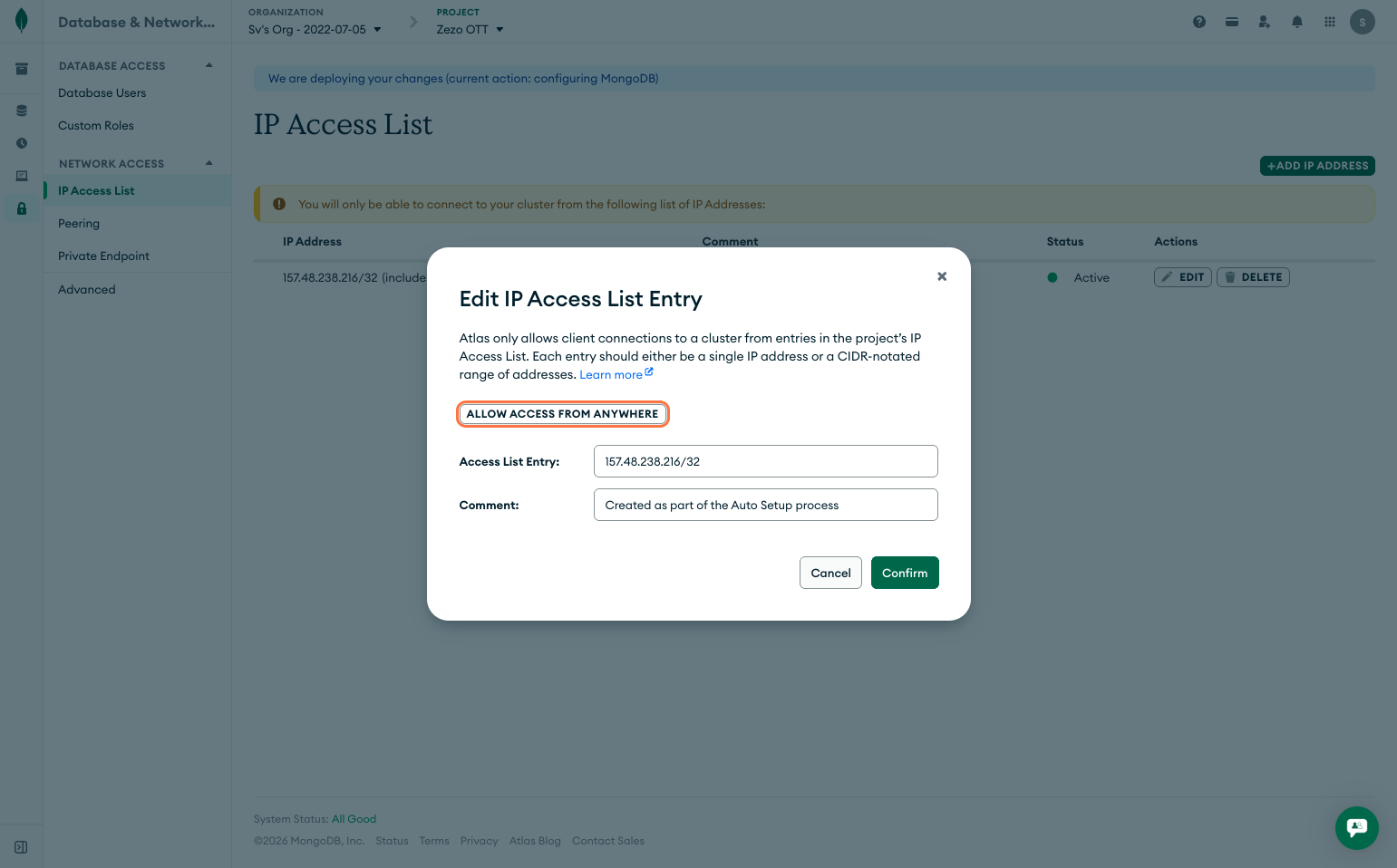
- Click on Edit
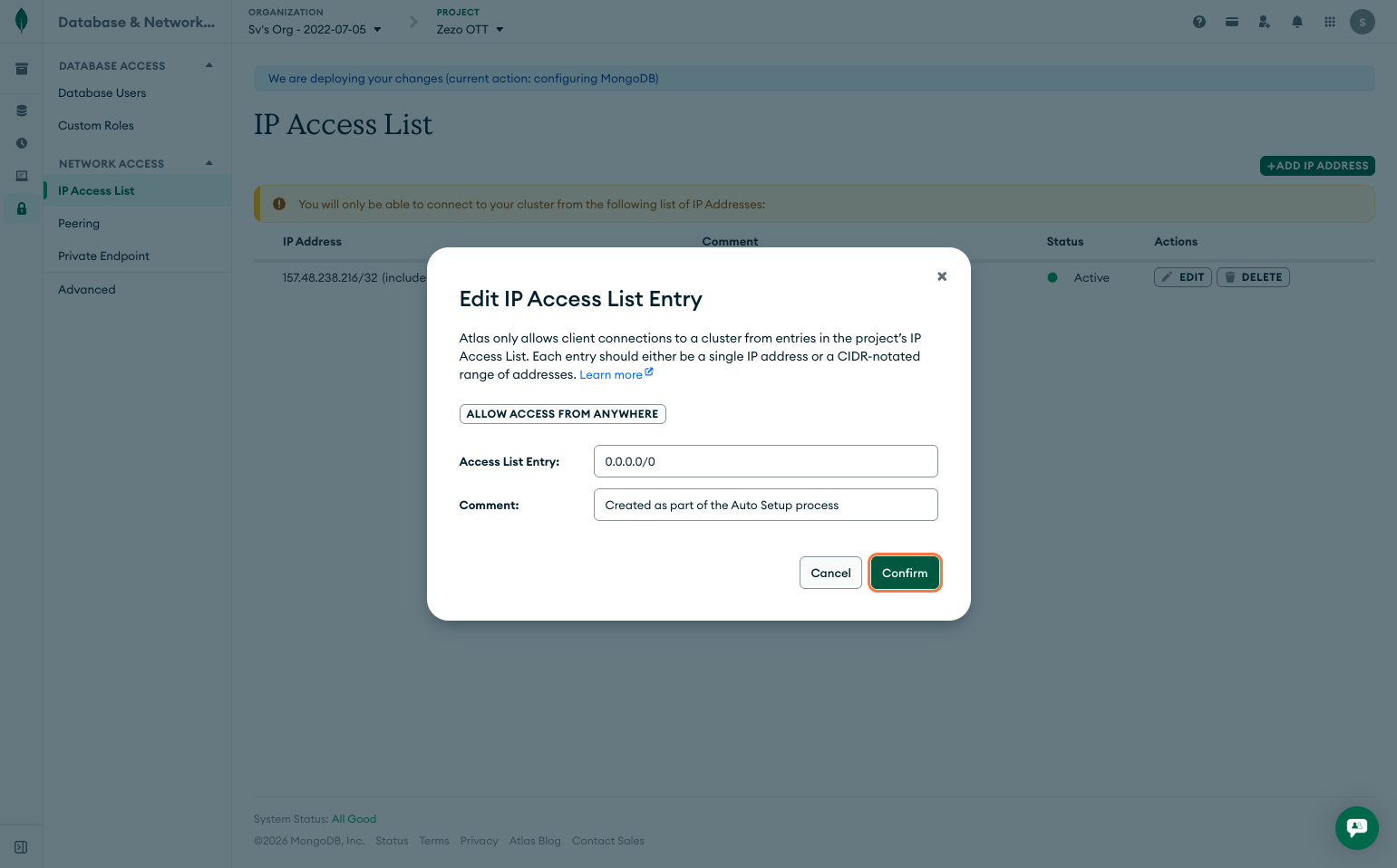
- Choose Allow Access from Anywhere (
0.0.0.0/0) (You can restrict this later for better security) - Click on Confirm
Step 6: Add Connection URL to Environment Variables
Now, take the MongoDB connection string you received from MongoDB Atlas.
DB_CONNECTION=mongodb+srv://svstringbeatz_db_user:<db_password>@cluster0.upw8ac2.mongodb.net/?appName=Cluster0
Before using it, make sure to add your database name to the connection URL. You can add it after the / and before the ?.
Example:
DB_CONNECTION=mongodb+srv://svstringbeatz_db_user:<db_password>@cluster0.upw8ac2.mongodb.net/zezo-ott?appName=Cluster0
Once this is added, save the environment variable.
✅ That’s it! Your MongoDB database is now properly configured and connected to the Zezo OTT API, and you’re ready to move on to the next steps 🚀